



This article provides a detailed overview of the current Mercedes-Benz functions supported by CGDI A2 key programmer, including required accessories, and step-by-step instructions for reading/writing EIS, programming keys, and calculating passwords for both key adding and all keys lost.
- Feature Comparison: CGDI A2 VS CGDI MB
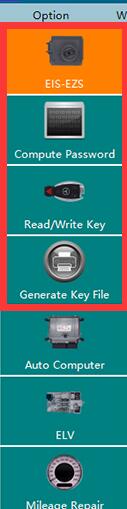
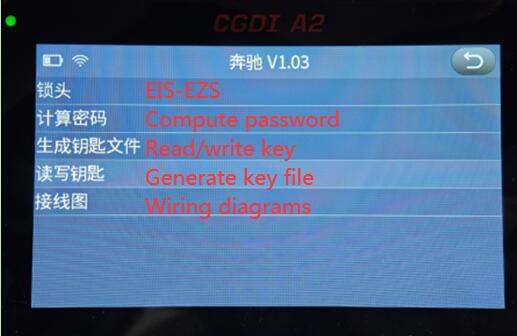
At present, CGDI A2 programmer only supports five core functions:
- EIS-EZS
- Compute password
- Read/write key
- Generate key file
- Wiring diagrams
Important notes on missing features:
(1) ELV synchronization function within EIS interface has not yet been added.
(2) Within the key reading/writing section, the following are not yet available:
- Read brand-new BGA keys
- Upgrade CGPKE keys
- Switch CG key frequency
- What accessories are required?
Depending on the operation, the following accessories are needed:
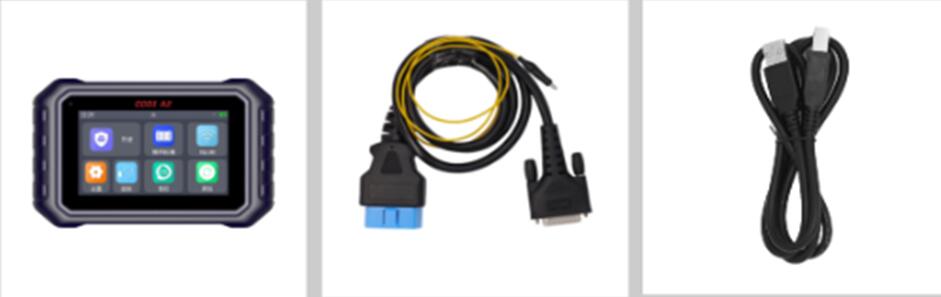
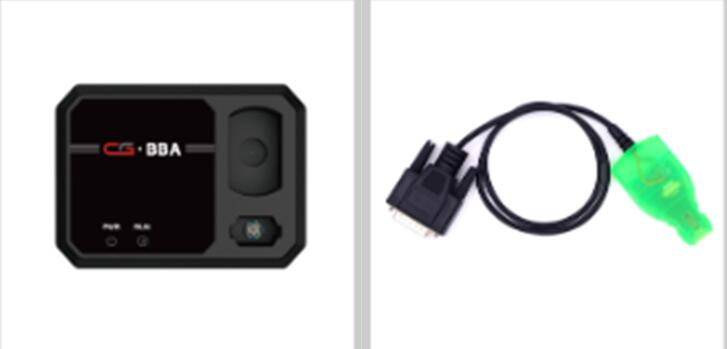
(1) CGDI A2 main unit + OBD cable (with yellow clip) + USB cable (mini-USB end)
(2) BBA adapter + Mercedes-Benz simulation key
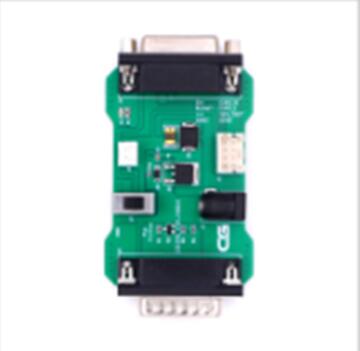
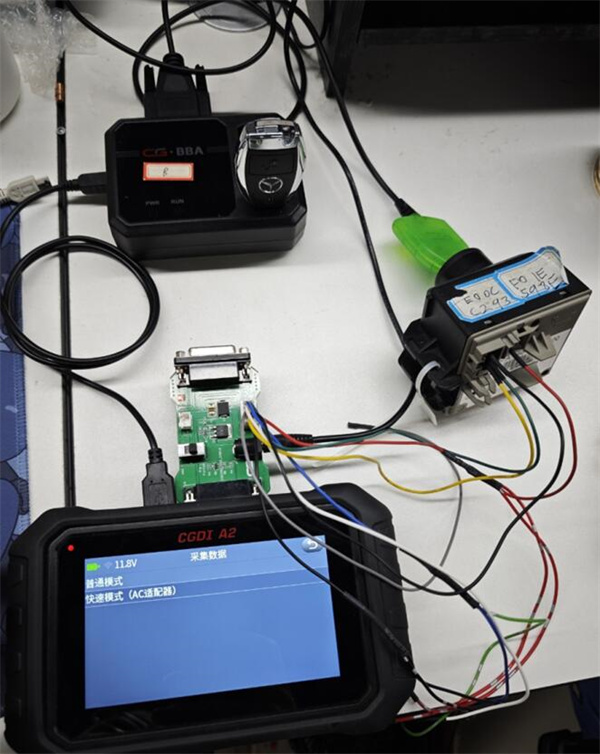
(3) AC fast acquisition adapter + wiring harness (shared with CGMB; if you do not own a CGMB, the harness must be ordered separately)
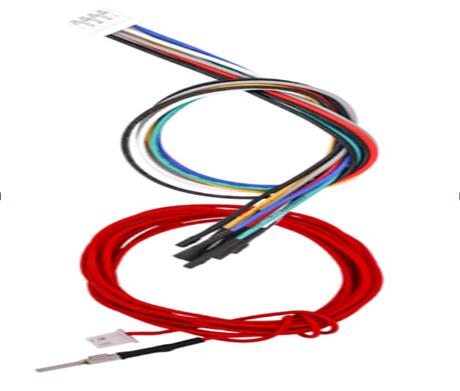
Harness part number:
- D47-000057 – Cable / Wire – CGMB \ Mercedes-Benz AC cable 2P \ CGZD020901 \ 1007-22 \ 2M, Red, Carbon steel terminal, GCK
- D47-000058 – Cable / Wire – CGMB \ Mercedes-Benz AC cable 8P \ CGZD020901 \ 1007-22, 0.3M, Black, Red, Yellow, Green, Blue, White, Gray, Black (8 colors), GCK
- How to Read/Write EISvia OBD?
CGDI A2 programmer connects to vehicle’s OBD port using OBD cable. No additional steps are required for basic lock head reading/writing.
- How to Read/Write a Key?
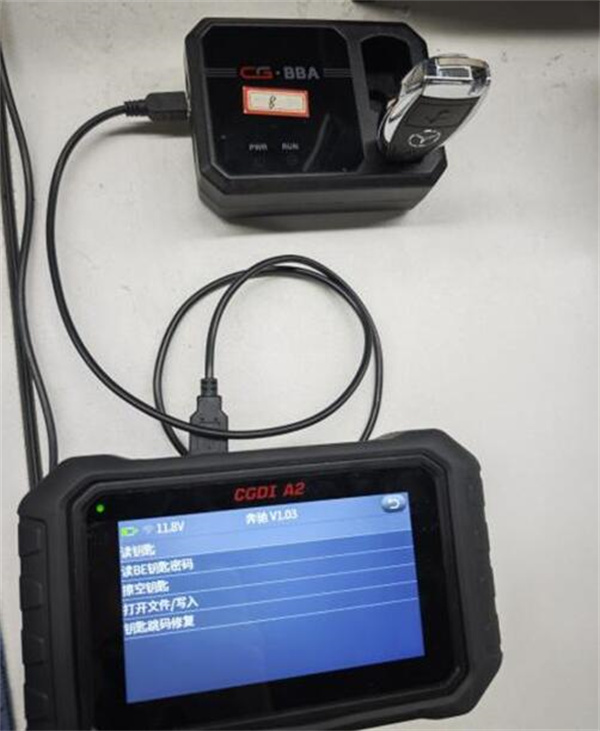
As shown in the diagram (refer to the original illustration):
Connect CGDI A2 key programmer to BBA adapter using USB cable.
Place the key into the key slot on BBA adapter.
Perform the read/write operation through the software interface.
- 5. How to Calculate Passwords (Key Adding& All Keys Lost)
(1) Key Adding (Add a key when an existing working key is available)
Connect CGDI A2 device to EIS via OBD cable.
Connect CGDI A2 device to BBA adapter using USB cable.
Place the key to be programmed into BBA adapter’s key slot as prompted by the software.
On the software interface, navigate to:
Calculate Password → Collect Data → Key Adding (Key with Working Key) → Generation 1 Key or Other Key
Then follow the on-screen instructions.
(2) All Keys Lost (No working key available)
There are two modes available:
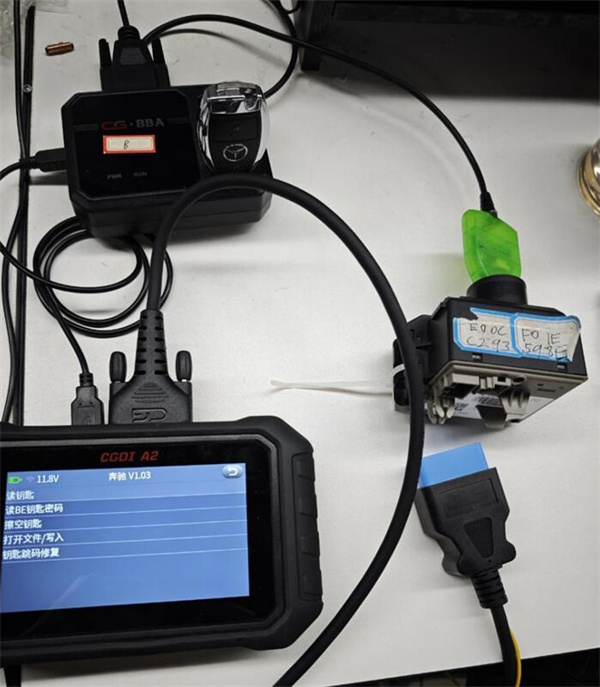
- Standard All-Keys-Lost Mode
Connect CGDI A2 device to EIS via OBD cable.
Connect CGDI A2 device to BBA adapter using USB cable.
Connect Mercedes-Benz simulation key to BBA adapter.
Navigate to:
Calculate Password → Collect Data → Key Adding (No Key Available) → Auto Detect → Standard Mode
Then follow the on-screen instructions.
② Fast All-Keys-Lost Mode
Connect CGDI A2 device to EIS via OBD cable.
Connect CGDI A2 key tool to BBA adapter using USB cable.
Connect Mercedes-Benz simulation key to BBA adapter.
Navigate to:
Calculate Password → Collect Data → Key Addition (No Key Available) → Auto Detect → Fast Mode
Then follow the on-screen instructions.
Learn more:
