

This post provides a complete CGDI K2 Smart Key Tool User Manual including the contents below.
1.Hardware Description
2.Turn on/off device
3.Main functions:
- Generate remote for wireless remotes
- Generate remote for smart remote
- Frequency detection
- Anti-theft chip identification
- Remote renew
- MCU Programmer
- Maintenance
In detail…
1.CGDI K2 Hardware Description
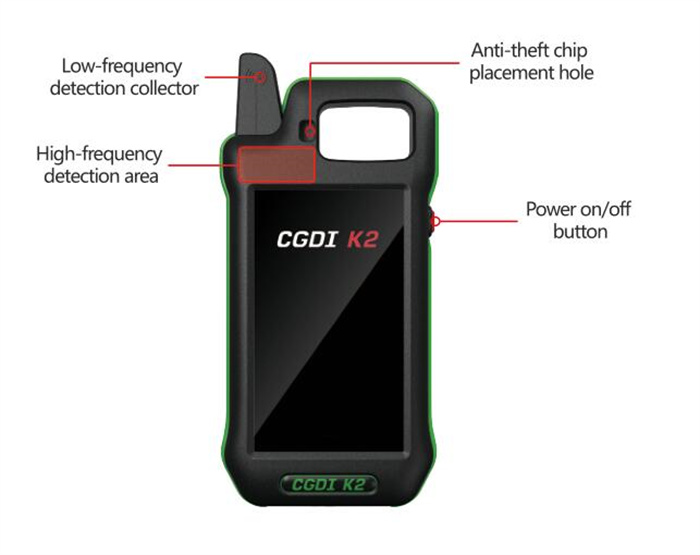
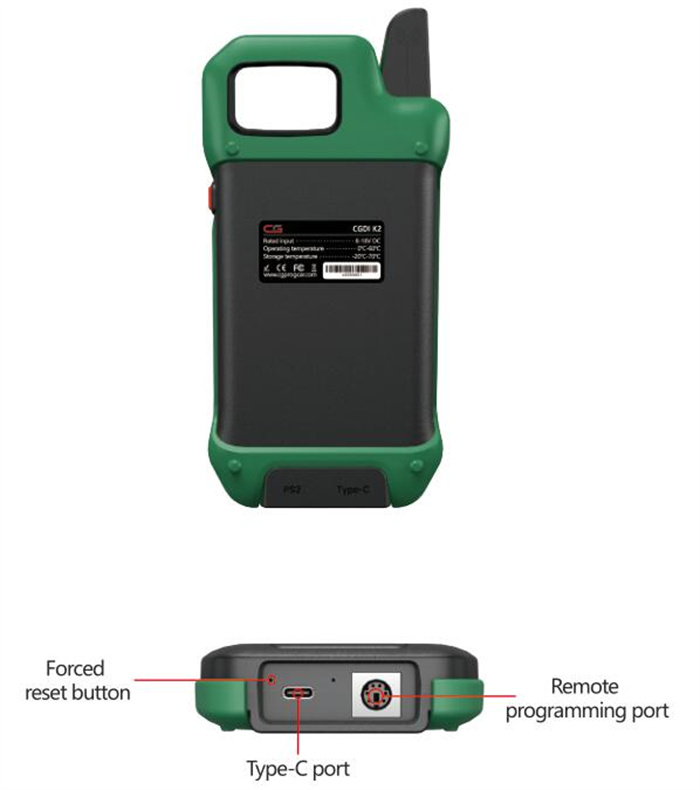
① Forced reset button: Insert a tiny pin into the forced reset button hole at the bottom of the device to force the device to shut down.
② Remote programming port: Inserting remote programming cable can be used for remote wired generation; inserting the remote renew cable can be used for renewing.
2.Turn on/off CGDI K2
① Press and hold the power button. After the device is turned on for the first time, you need to connect to WIFI to activate the device and update the software and firmware. In order to facilitate the remote points collection, you need to log in to the CG account. If you do not have it, you can click the [No account? Create one] button to register.
② After entering the system, press and hold the power button for 2 seconds, and the following interface will be displayed. Click the corresponding option to perform the corresponding operation.
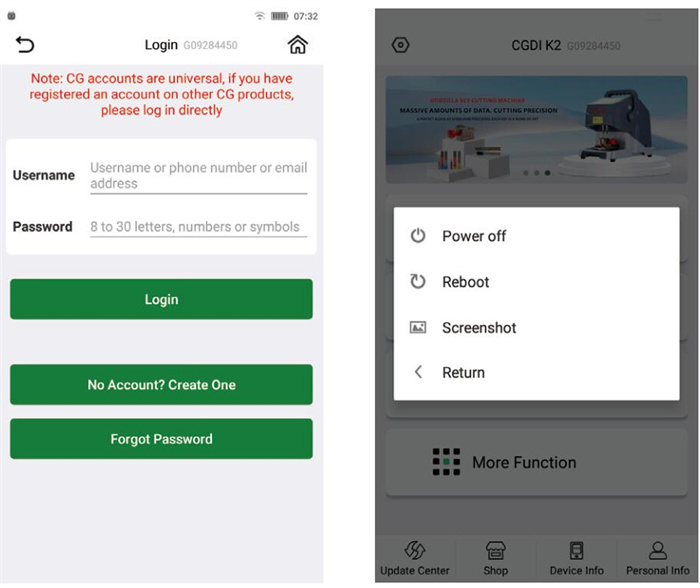
③ When the screen is on, short press the power button, CGDI K2 key programmer will turn off the screen; when the screen is off and standby, short press the power button to turn the screen on; long press the power button for 5 seconds to force the device to shut down.
④ The device will automatically shut down when the battery power is less than 5%. Please use a 4.5V-5.5V/1A charger to connect the Type-C data cable to charge.
3.Main functions
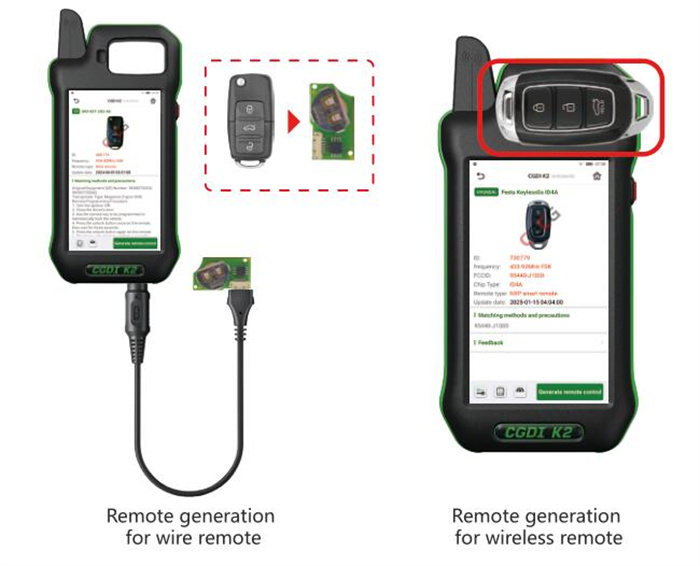
① Generate remote for wireless remotes
Enter the [Remote Generation] button from the home page, select corresponding model, as shown in following figure; remove the shell of the remote, and connect it to the remote programming port of the device through the remote programming cable, as shown in following figure.
Then click generate remote, select wired generation, confirm generation, and wait for the progress to complete.
② Generate remote for smart remote
Select a corresponding model to be generated, as shown in following figure. Place the key on the device coil.
Then click generate remote, confirm generation, and wait for the progress bar to complete
③ Frequency detection
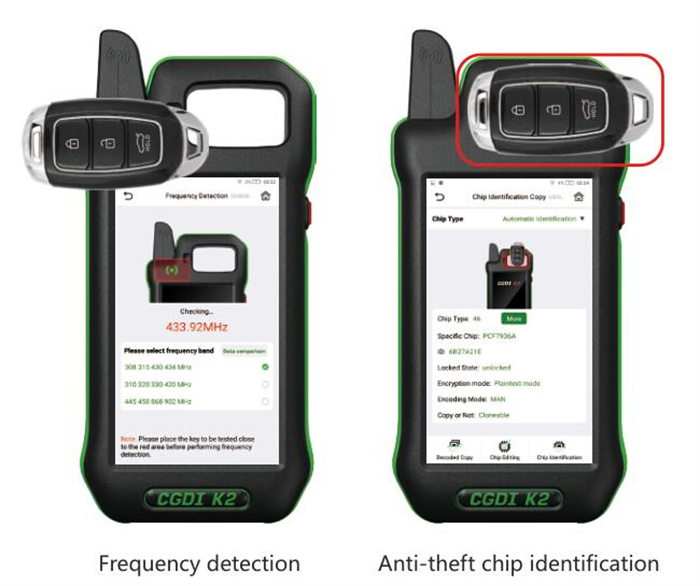
Enter the [Frequency detection] button from the home page, select the corresponding frequency band, and place the remote close to the high-frequency detection area, short press any button on the remote.
④ Anti-theft chip identification
Enter the [Chip Identification Copy] function interface from the main interface.
In the upper right corner of the chip identification function interface, you can choose to specify chip identification or automatic identification. After selecting, place the key above the coil and click [Chip Identification] to display the relevant information of the chip.
⑤ Remote renew
Remote renew will program the data in the key chip. After success, the key can be re-matched. Enter the [Remote renew] button from the [More Functions] button and select a type to be unlocked model.
The wiring method can be selected as solder or solder-free.
- Use welding for unlocking wire
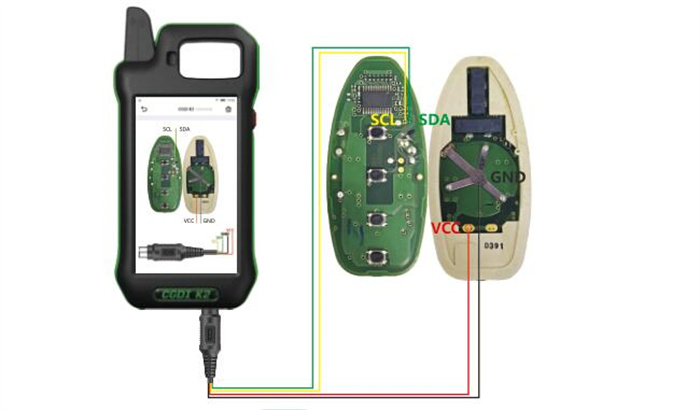
Refer to the connection to connect the key unlocking wire to the key board, and then connect it with Remote Generation Port.
- Use the solderless unlocking wire
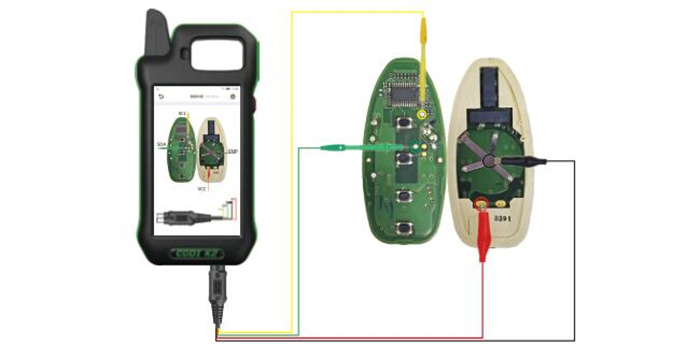
Connect the Remote renew cable (solderless) to the remote programming cable of CGDI K2 Smart Key Tool, clip the power and ground with a clip on the key board, and connect the other two wires to the test points.
After confirming that the key board model and wiring are correct, click Renew to confirm.
⑥ MCU Programmer
Enter the [MCU Programmer] button from the [More Functions] button.
Select the model and connect according to the wiring diagram, as shown in following figure. After the connection is completed, you can perform operations such as reading, writing, etc.
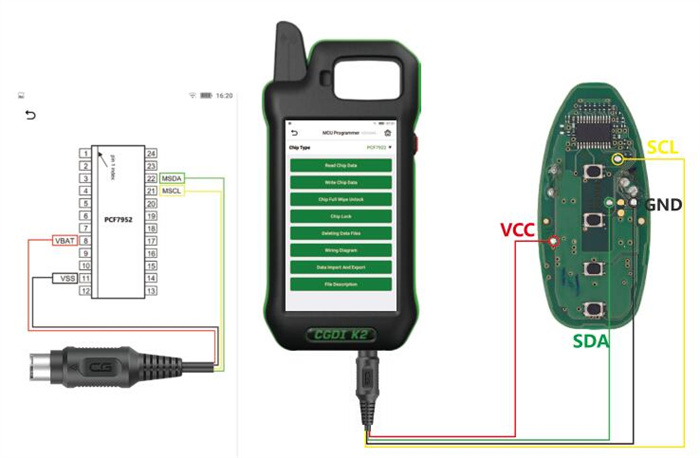
7.Maintenance
Please pay attention to waterproof, dustproof and drop-proof.
Do not store or use CGDI K2 Key Tool in high temperature, high humidity, flammable and explosive environments.
Do not disassemble or modify the internal electronic components of the device without permission.
Please protect the display screen well to prevent it from being damaged by sharp objects.
Learn more:
1.How to Get Free ID48 96Bits Calculation for CGDI K2?
2.How to Add BMW G Series BDC3 Key by CGDI K2?
3.CGDI K2 Detect Frequency and Learn Model of Remotes
4.How to Convert CG CP8X Super Chip by CGDI K2?
5.How to Solve CGDI K2 Startup Freezing Issue?
6.CGDI K2 Check and Sync BMW Mileage Guide
7.Unlock Honda Civic All Keys Lost by CGDI K2 and CGDI A2
8.Solution for “CGDI K2 has Stopped”
9.How to Solve CGDI K2 Black Screen and Not Show Charging?
